

Overview
Single Sign-On (SSO) lets your team sign in to Passionfruit using the same login they already use for work—no need to remember another password. When enabled, users click “Sign in with Microsoft” (or your company’s login provider) and they’re automatically logged in. This is a managed setup: you request access, and we work with your IT team to get everything configured. Available on request. Email
hello@passionfruit.earth to get started.What is SSO?
Instead of creating a separate Passionfruit password, SSO lets users sign in with their work account. When someone clicks “Sign in with Microsoft,” they’re redirected to your company’s login page, enter their work credentials, and then come back to Passionfruit—already logged in. This means your team uses the same login they use for email, Microsoft 365, and other work tools. All the security settings your IT team has configured (like requiring two-factor authentication) automatically apply to Passionfruit too.Why use SSO?
- One less password to remember: Users sign in with their work account
- Better security: Your IT team’s security rules (like two-factor authentication) automatically apply
- Easier access: No need to create or reset Passionfruit passwords
- Simpler management: When someone leaves your company, removing their access is handled through your existing systems
Providers
Choose your identity provider below to see setup instructions and details specific to that provider.- Microsoft Entra
Enable Single Sign-On (SSO) for your organisation using Microsoft Entra ID (formerly Azure Active Directory). This integration allows users to sign in to Passionfruit using their existing Microsoft credentials, eliminating the need for separate passwords.This integration is offered as a managed setup: you request access, and we configure everything with your IT team using Microsoft Entra ID.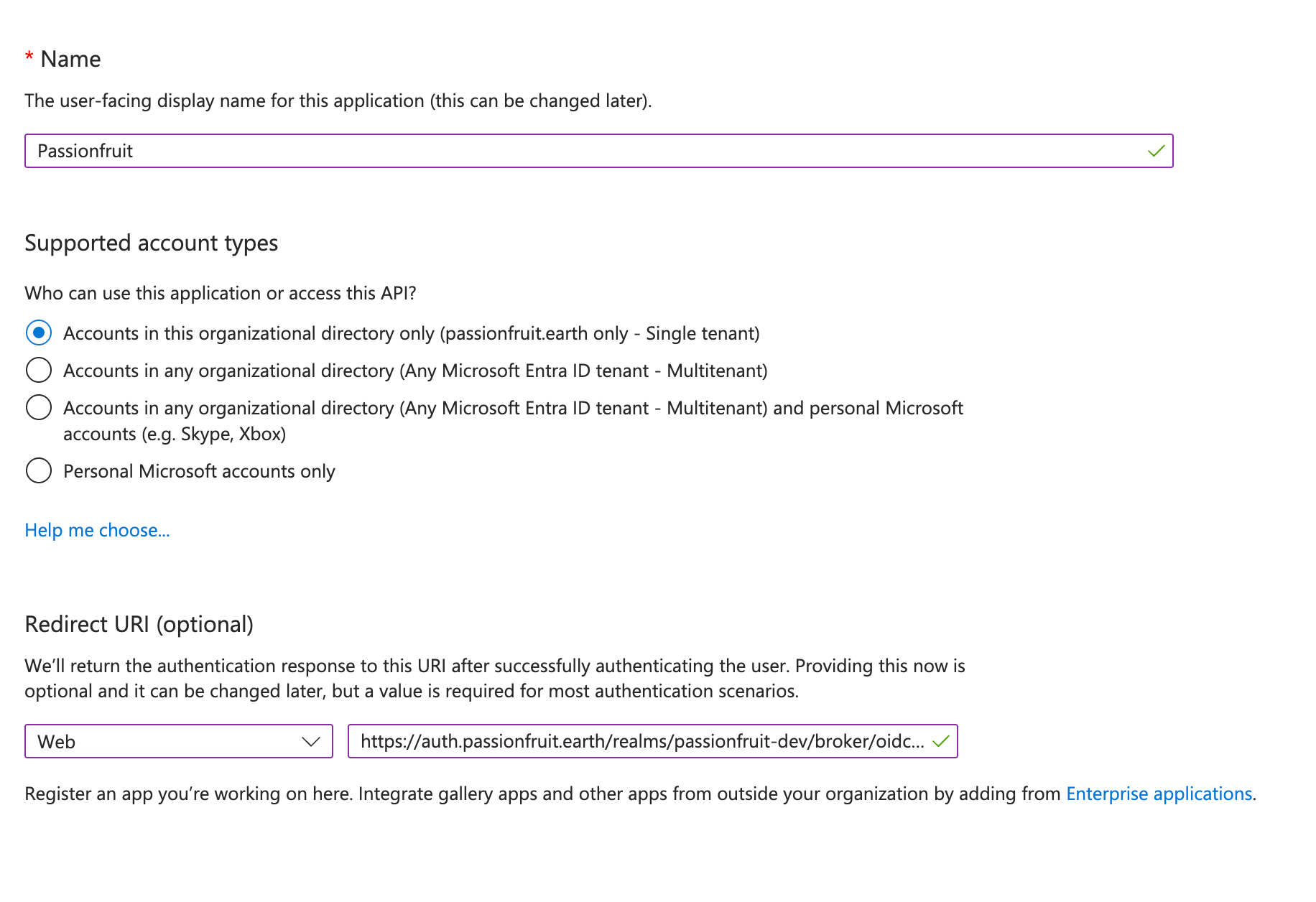
For administrators
SSO setup requires coordination between your IT team and the Passionfruit team. As an IT manager, you’ll need to configure settings in Microsoft Entra ID while the Passionfruit team provides the necessary configuration details and guides you through the process.Your responsibilities:- Register Passionfruit as an Enterprise Application in Microsoft Entra ID
- Set up user and group assignments to control who can access Passionfruit via SSO
- Test the integration to verify everything works correctly
- Administrative access to the Microsoft Entra admin center
- Global Administrator or Application Administrator permissions in Microsoft Entra ID
- A designated IT contact person to coordinate with the Passionfruit team
- Sign in to the Microsoft Entra admin center
- Navigate to Identity > Applications > Enterprise applications
- Click New application > Create your own application
- Enter a name for the application (e.g., “Passionfruit”)
- Select Integrate any other application you don’t find in the gallery (Non-gallery)
- Click Create
- Name: Enter “Passionfruit” as the display name
- Supported account types: Select “Accounts in this organizational directory only (Single tenant)”
- Redirect URI: The Passionfruit team will provide the redirect URI to configure
- Tenant ID: Go to Overview and copy the Directory (tenant) ID. We’ll use this to create the OpenID Connect discovery URL for your organisation.
- Client ID: Go to Overview and copy the Application (client) ID.
- Client Secret: Go to Certificates & secrets → New client secret → enter a description and expiration date → click Add → copy the Value (this is shown only once; store it securely).
- Go to Manage > Users and groups
- Click Add user/group
- Select the users or groups who should have access to Passionfruit via SSO
- Click Assign
- Use the Test this application option in Microsoft Entra ID to verify the SAML configuration
- Test with a sample user account to ensure:
- Users can successfully sign in with their Microsoft credentials
- Multi-factor authentication (if enabled) works correctly
- User attributes are correctly passed to Passionfruit
- Access control and permissions are working as expected
- Once testing is complete, ensure SSO is enabled for the application
- Communicate the SSO status to your users
- Users can now sign in to Passionfruit using their Microsoft credentials
The Passionfruit team will work closely with your IT team throughout this process. We’ll provide all necessary configuration details and assist with testing.
User Experience
Once SSO is configured, users can authenticate using either SSO or password login, but not both:- Sign in with Microsoft (SSO): Users can click “Sign in with Microsoft” and authenticate using their Microsoft Entra ID credentials. This option respects all your organisation’s security policies, including MFA requirements.
- Sign in with password: Users can continue using their Passionfruit password if SSO is not enabled for their account.
- Multi-factor authentication requirements
- Conditional access rules
- Password policies
- Account lockout policies
Need a different login provider? Contact
hello@passionfruit.earth to discuss options.Need help?
Contact our support team:- Email:
hello@passionfruit.earth - We’ll work with your IT team to configure Microsoft Entra ID and ensure users can seamlessly sign in with their Microsoft credentials