

Overview
SharePoint is your starting point for integrating Passionfruit with where your documents already live. Connect your SharePoint and your policies, reports, certifications, and other documents are automatically pulled into your Knowledge Base. No downloading, re-uploading, or guessing whether you have the latest version. Provide access to a folder in SharePoint, and we’ll keep it in sync. Currently, the integration supports PDF and Word (.docx) files.The SharePoint integration is available on request. Email
hello@passionfruit.earth to get started.Sync evidence
Review, assign, and import files from connected sources into your Knowledge
Base.
Version evidence
Track document changes over time and keep approved answers up to date.
Managing integrations
Once the integration is set up, you can manage it from Settings → Integrations. Here you see which integrations are active, when they last synced, and whether there are any issues. You can also request new integrations from this page.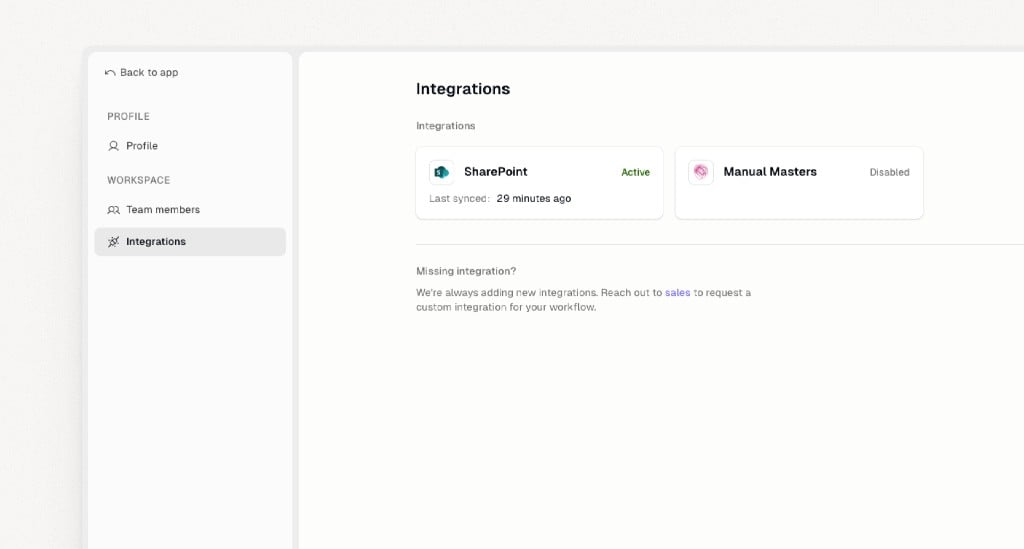
What is synced
- The files inside the SharePoint folder you point us to (PDFs and Word documents)
- Metadata used for discovery and compliance: title, type, size, creator, modified and created dates, and file path
- File content is processed for search and answer generation
Authentication and security
The SharePoint integration uses Microsoft Entra ID for authentication and access control.- Seamless SSO: If your organisation has configured Single Sign-On (SSO), users access SharePoint evidence with the same credentials
- Enterprise security: Your existing Microsoft Entra ID policies apply, including multi-factor authentication and conditional access
- Secure data access: All SharePoint access is authenticated through Microsoft Entra ID, so only authorised users can import and view evidence
Adding a new company tenant
This section explains how to add a new company tenant to the existing SharePoint app registration and connect it to Passionfruit.Step 1: Allow the tenant in the app registration
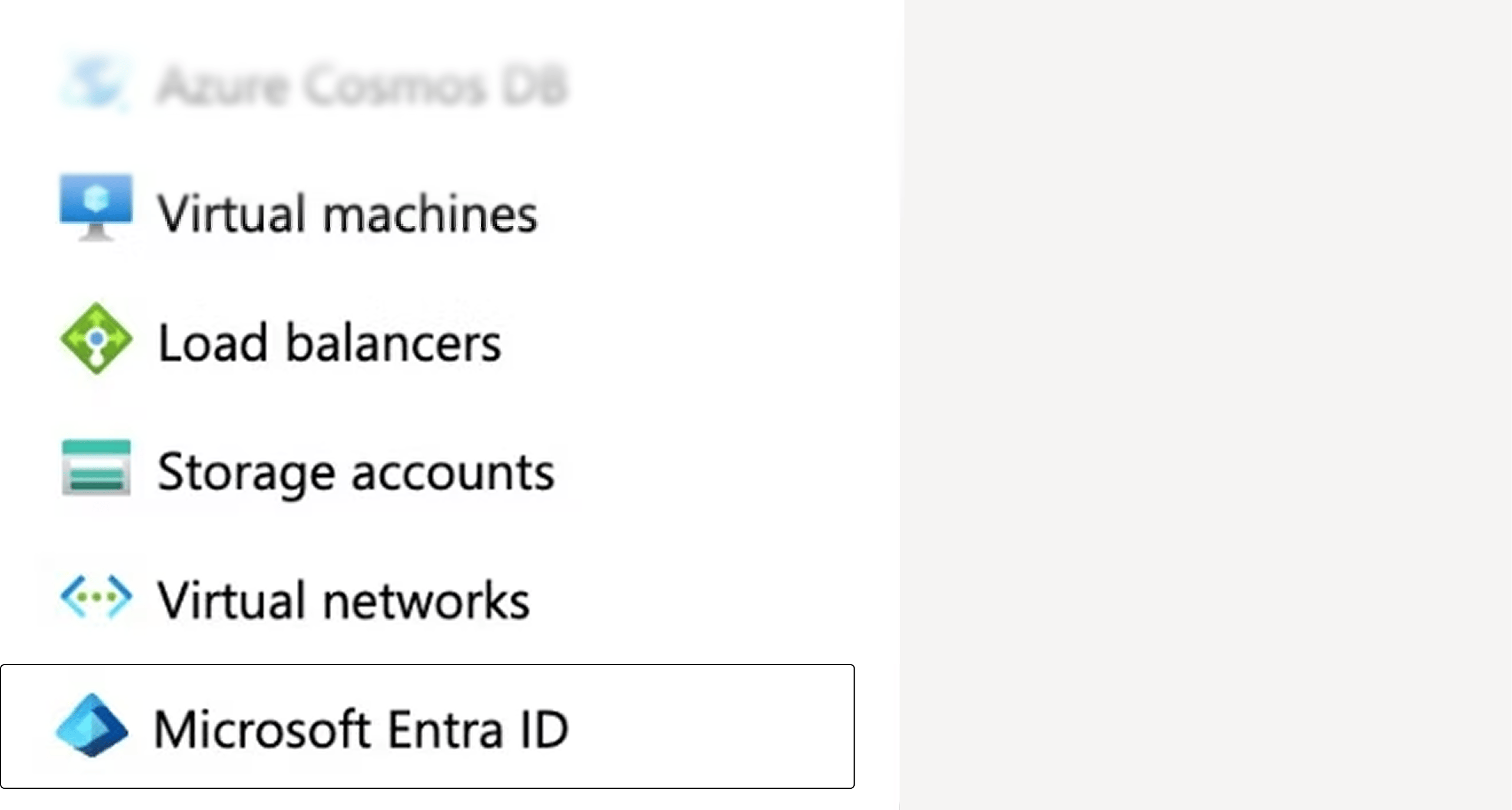
Restrict the multi-tenant app registration to specific Entra tenants by adding the new company.- Open Azure Portal and go to Microsoft Entra ID.
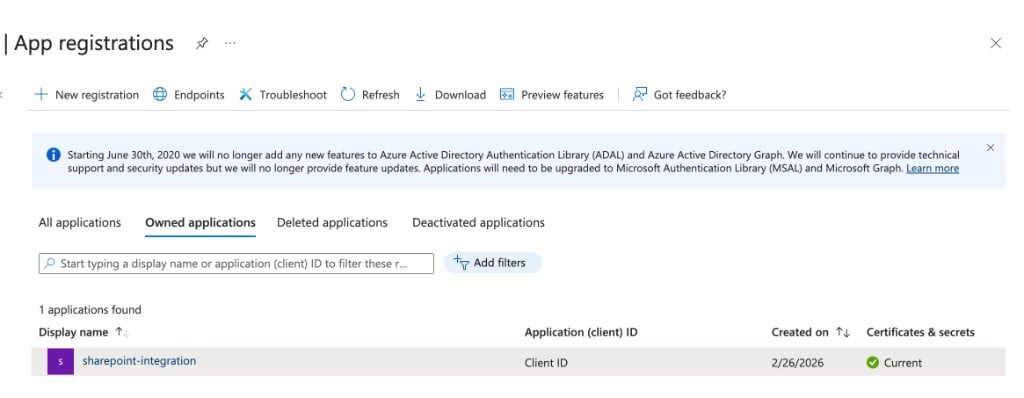
- Go to App registrations and open the SharePoint integration app.
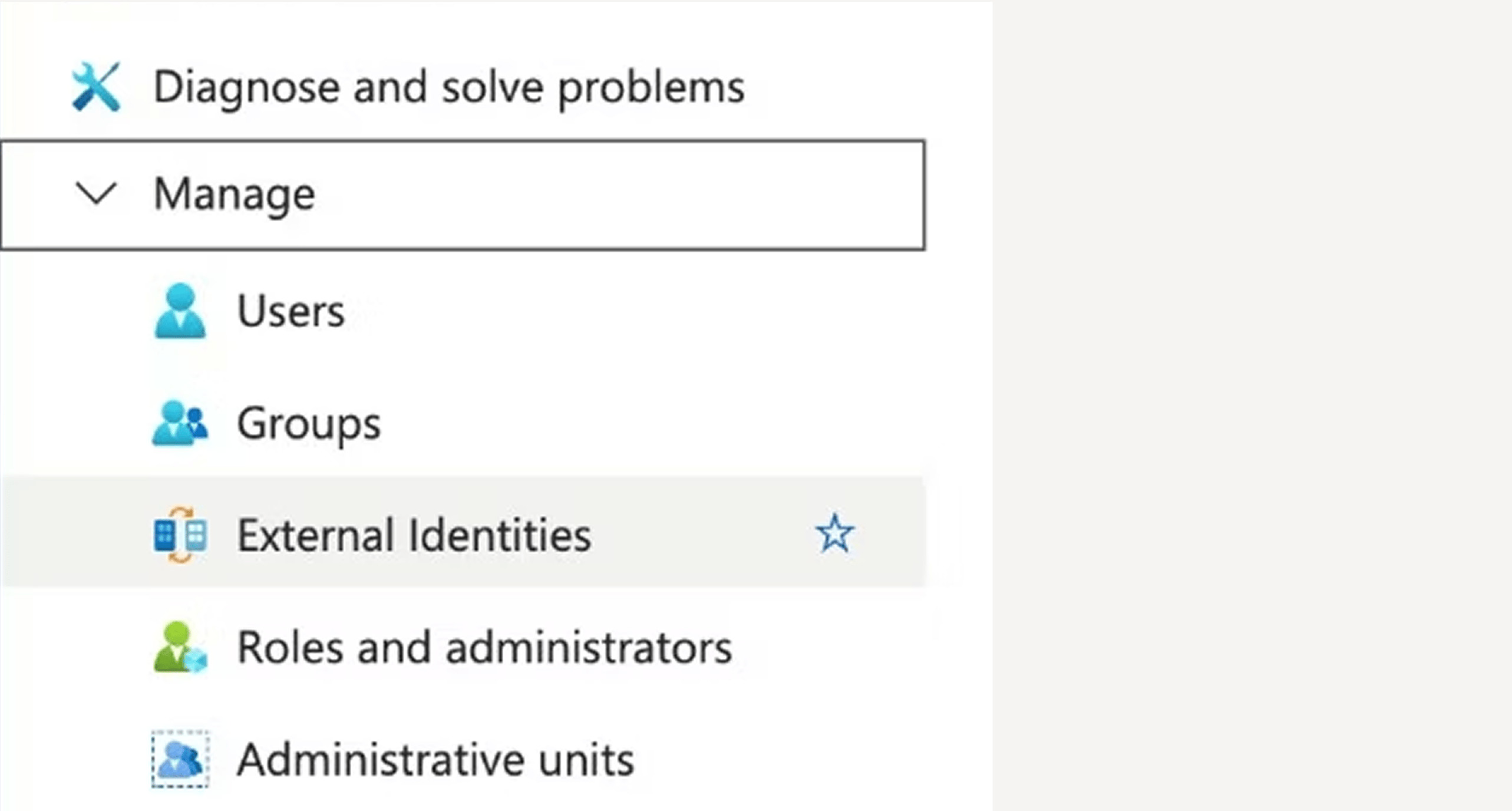
- Open Authentication (Preview) → Supported accounts.
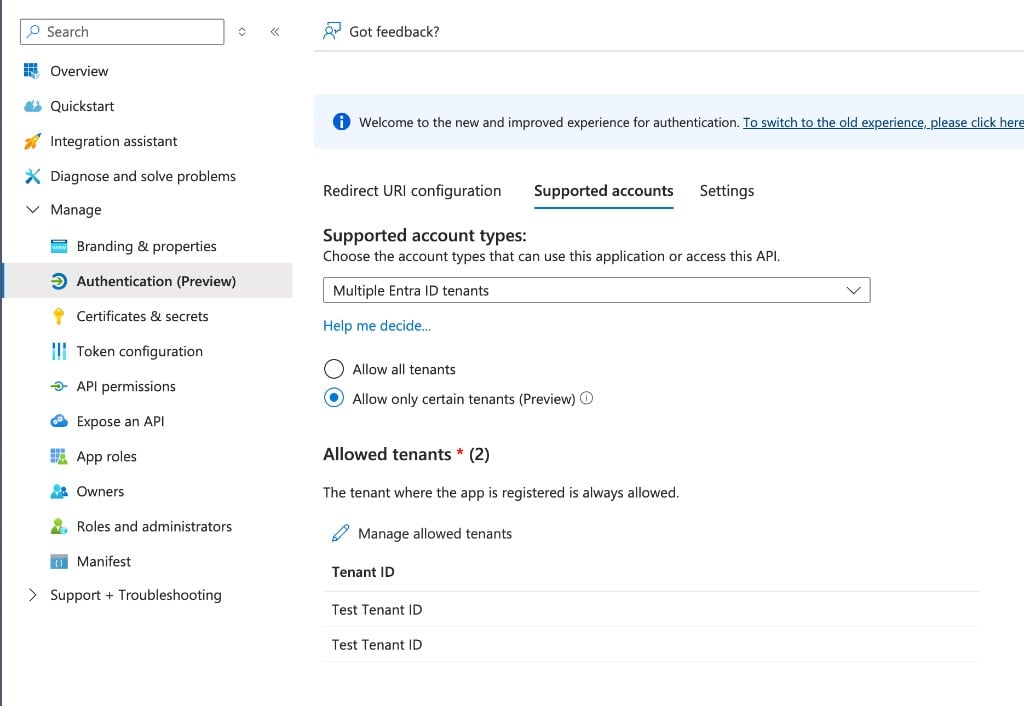
- Click Manage allowed tenants.
- In the dialog, add the new company tenant by Tenant ID or domain, then save.
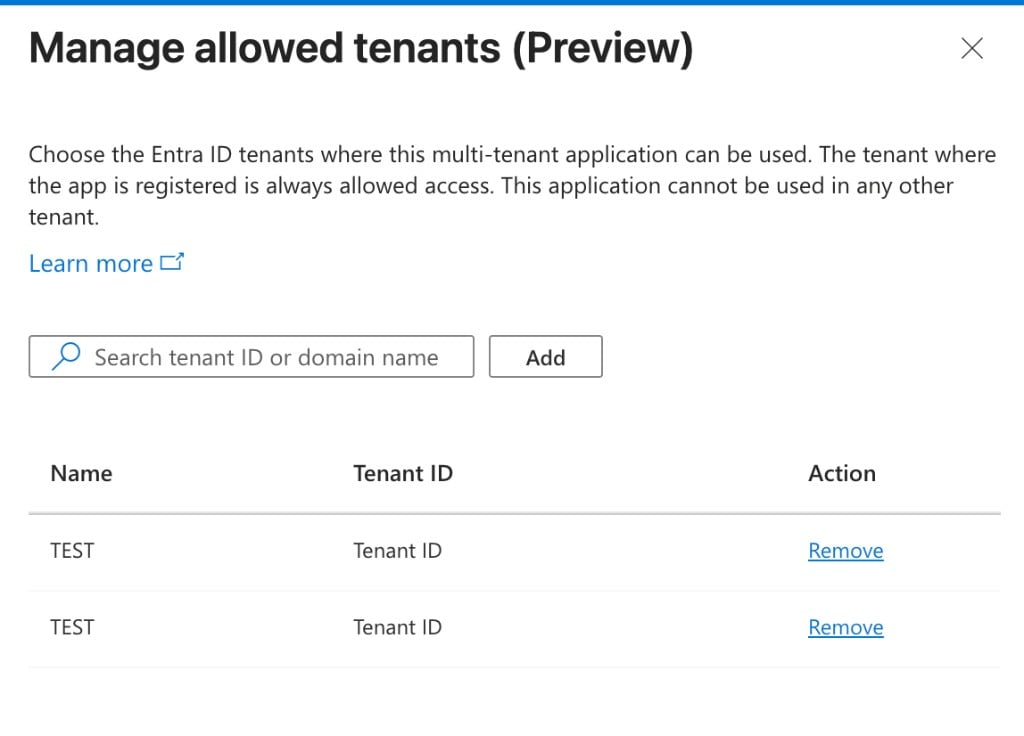
- Confirm the new tenant appears under Allowed tenants.
Step 2: Share details with Passionfruit
After your tenant is allowed on the app registration, send the Passionfruit team the information below so we can finish setup on our side. You do not need to run database scripts or call APIs. Those steps are handled internally.
If we already shared an Application (client) ID with you for this integration, include it when you write in so we can match your organisation to the correct app registration.