

How it works

Organization map
Passionfruit knows how your company is organized: your products,
customers, suppliers, and sites.
Integration layer
The agent learns where your information lives and how to fetch it.
Your systems
Integration library, custom integrations, and your DMS. Connected, not
copied.
Organization map
The organization map is how Passionfruit knows your company. It needs only two lists.
That is all. Passionfruit reads these lists from your system and keeps them up to date automatically. No API yet? Start with a CSV or Excel export.
The map is what makes everything else work:
- Everything is organized. Every document is linked to the products, customers, and suppliers it belongs to.
- Always the right item. Each task is tied to the exact ID from your system, so Passionfruit never mixes up two similar products.
- The key to your information. That same ID is how Passionfruit asks your systems for the details.
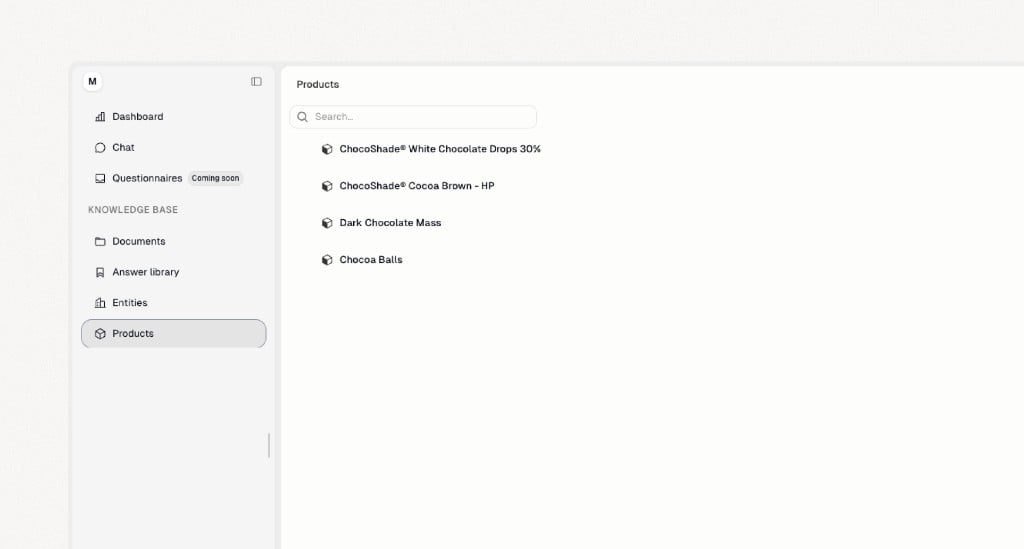
How the map is filled
How the map is filled
Passionfruit reads two lists from your system: entities (customers, suppliers, sites) and products. Usually this is a list endpoint, such as list entities and list products. A CSV or Excel export works too, to get started.Only the minimum is needed. Field names can differ in your system; we map them for you.
Sync schedule
Sync schedule
The map is updated on a schedule, for example four times a day. The first sync reads all products and entities. After that, Passionfruit only reads what changed, and updates existing records instead of creating duplicates, based on their ID.
Intelligent integration layer
Your information is spread across systems: specifications in your ERP or data platform, certificates in your quality system, signed questionnaires in SharePoint. The integration layer knows where each piece of information lives, and how to get it. When a task needs information, the agent finds the product or supplier in the organization map, then fetches the details from the right system using that ID. For example:How the integration layer works
The agent is what does the work. It reads the task, decides which information it needs, and asks for it. The integration layer makes sure that question reaches the right system, in the right way, within your rules. Every request passes through these layers.
1
Capabilities: what the agent can do
The agent never talks to a system directly. It uses a fixed set of capabilities, such as search products, read supplier, get specification, or read document. When you allow it, also write actions, such as update a supplier record or save a completed document. The same capabilities work for every system.
2
Configuration: how it is set up for you
Your setup tells the agent which source to use for what, and how. Which system holds specifications and which holds certificates, which fields to use, and which source wins when two disagree. For example: in MS Fabric, use the external tolerance limits, not the internal ones. In SharePoint, only include certified documents, and use the Customer column to link each document to a customer. We configure this together with you, and adjust it as we learn how your team works.
3
Authorization: who may see and do what
Your own rules always apply. Access follows your permissions, for example in Microsoft Entra ID, so the agent only sees what you allow. Write actions follow your approval flow: nothing is changed in your systems until someone on your team approves it.
4
Integrations: your systems, plugged in
Each of your systems plugs into Passionfruit through an integration: from the integration library, a custom integration, or your DMS. The integration logs in, calls your system, and turns the answer into products, entities, and documents that Passionfruit understands.
Documents from your DMS work a little differently. They are synced in the background, without the agent, so they are ready before a task starts. During a task, the agent searches the synced documents instead of opening your DMS. How the DMS sync works
Your systems
Passionfruit connects to the systems you already use, in three ways. Every setup starts with your organization map, which can come from any of your systems or from a CSV or Excel export. Each integration then adds the information you need.Integration library
Ready-made integrations for quality and supplier platforms.
Custom integrations
Your own data platforms, ERP, and internal APIs.
DMS
Document management systems such as SharePoint and Google Drive.
Integration library
Ready-made integrations for the quality and supplier platforms used across the food industry. You give us access, and we connect your account.


hello@passionfruit.earth. We add new integrations to the library all the time.
Custom integrations
Every company has its own systems: a data platform like MS Fabric, an ERP like Microsoft Dynamics, a PLM, or an internal API. With a custom integration, Passionfruit works with them just as well. You tell us which information you want to use and where it lives, such as product specifications, packaging, or orders. We connect to it and teach the agent how your systems are structured, so it always fetches the right information.Custom integrations
How we set up a custom integration together with you.
How information is fetched
How information is fetched
Details such as specifications, packaging, or orders are not copied in advance. When a task needs them, the agent looks up the product or entity in your organization map, and fetches the details from your system using that ID. For example
GET /products/{itemCode}/specification.For the integration library, these calls are built in. For custom integrations, any endpoint that returns information by product or entity ID works. There is no fixed format: we map your response and teach the agent which endpoint holds which information.Documents from a custom system
Documents from a custom system
When documents come from your own system instead of a DMS, Passionfruit reads a document list and downloads the files.The ID, filename, last modified date, and download URL are required. The item code and entity ID link the document to your organization map.
Document management system (DMS)
Connect the document management system you already use, such as SharePoint or Google Drive. Passionfruit adds your documents, indexes them, and keeps them in sync, so they are ready the moment you start a task. Quality documents are often heavy: long PDFs, Excel files with many tabs, presentations, and emails, in all kinds of formats. Opening and reading them while a task runs would be slow. Because everything is indexed up front, the agent searches thousands of documents in seconds and uses the right part of the right file. Your DMS stays the source of truth. Passionfruit never edits or deletes your files.SharePoint
Connect a site or folder with Microsoft Entra ID.
Google Drive
Share a folder with your custom Passionfruit email address.
- You choose what to share. A site, library, or folder, and if you want, which document types or statuses to include.
- We do a first full sync. Every document in scope is imported, linked to the right products, customers, and suppliers, and made searchable for the agent.
- After that, changes come in automatically. When a file is added or changed, your DMS lets Passionfruit know, and we sync just that change. Updated files are saved as a new version, so the history is kept.
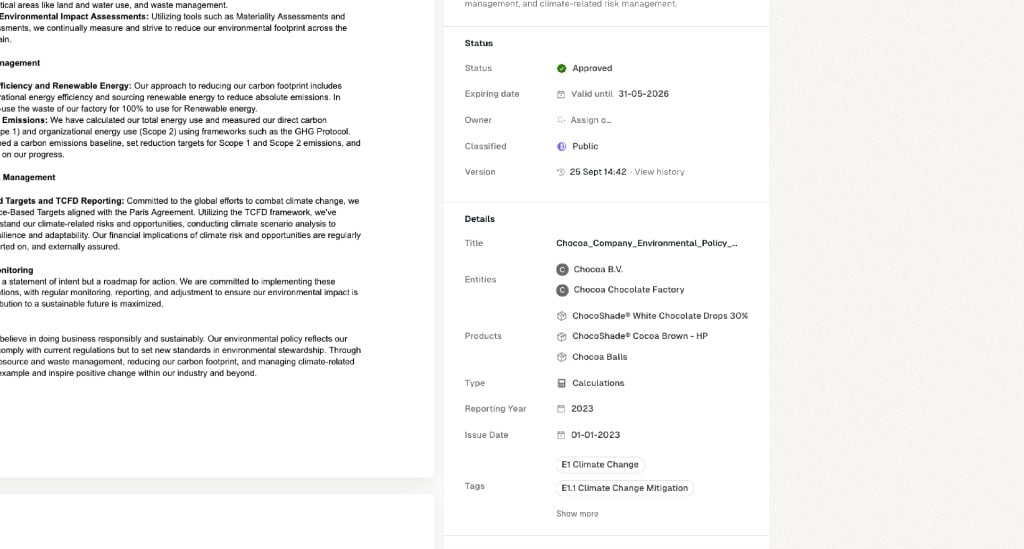
.pdf), Word (.docx, .doc), Excel (.xlsx, .xls), PowerPoint (.pptx, .ppt), and email (.eml, .msg).
Technical details
When a sync is triggered
When a sync is triggered
You can also trigger a sync manually, for setup, support, or reprocessing.
Sync steps
Sync steps
- Read metadata. Passionfruit reads metadata such as document ID, filename, file type, folder path, your own columns, and last modified date. File content is not copied yet.
- Import. Documents in scope are downloaded, converted when needed, and checked for duplicates. Depending on the setup, your team can review them first.
- Link and process. Each document is linked to the right products and entities in your organization map, and processed so the agent can search it.
Metadata mapping
Metadata mapping
Your own metadata comes along with each document. In SharePoint, you choose which list columns to include.Columns or your folder structure can also be used to fill your organization map: the list of your products, customers, suppliers, and sites that Passionfruit uses to organize everything. Each document is then matched to the right product or entity, and new ones are created when they don’t exist yet. For example, a Customer column or a folder per supplier is enough to link every document to the right customer or supplier.
Deduplication and versions
Deduplication and versions
When a file changes, the new file is saved as a new version. The old version stays in the history.
File types and limits
File types and limits
Files can be up to 150 MB. Files that are too large or of another type are skipped and reported.
Security
- Read-only by default. Passionfruit only writes to your systems when you grant write access, and write actions can require approval by your team.
- Only what you share. Passionfruit only sees the lists, folders, and systems you connect.
- Your authentication. Connections run server-to-server, using app registration (for example Microsoft Entra ID), API tokens, or the method your system requires.
- Built to be reliable. Failed requests are retried, and one bad file or record never blocks the rest.
Authentication
Authentication
Passionfruit connects to your systems server-to-server. Your team never has to share personal passwords.
- App registration, for example in Microsoft Entra ID for SharePoint. Your existing policies, such as conditional access, keep applying.
- HTTP header authentication, for example
Authorization: Bearer <token>. - Folder sharing with a custom Passionfruit email address, for Google Drive.
- Custom authentication, depending on the source system.
What is stored where
What is stored where
Reliability
Reliability
Connection errors are shown on the integration. Errors for a single document, product, or entity are recorded on that record.
Getting started
1
Tell us your systems
Which systems hold your products, suppliers, documents, and details.
2
Share access
Your entity and product lists, plus access to the systems and folders
with the information you want to use.
3
We connect and teach the agent
We configure the integrations and teach the agent how your company is
organized.
4
Test with real tasks
Your team checks the results on real work before going live.