> ## Documentation Index
> Fetch the complete documentation index at: https://docs.passionfruit.earth/llms.txt
> Use this file to discover all available pages before exploring further.
# SharePoint
> Integrate with your single source of truth
#### Overview
SharePoint is your starting point for integrating Passionfruit with where your documents already live. Connect your SharePoint and your policies, reports, certifications, and other documents are automatically pulled into your Knowledge Base. No downloading, re-uploading, or guessing whether you have the latest version.
Provide access to a folder in SharePoint, and we'll keep it in sync. Currently, the integration supports **PDF** and **Word (.docx)** files.
The SharePoint integration is available on request. Email
`hello@passionfruit.earth` to get started.
Review, assign, and import files from connected sources into your Knowledge
Base.
Track document changes over time and keep approved answers up to date.
#### Managing integrations
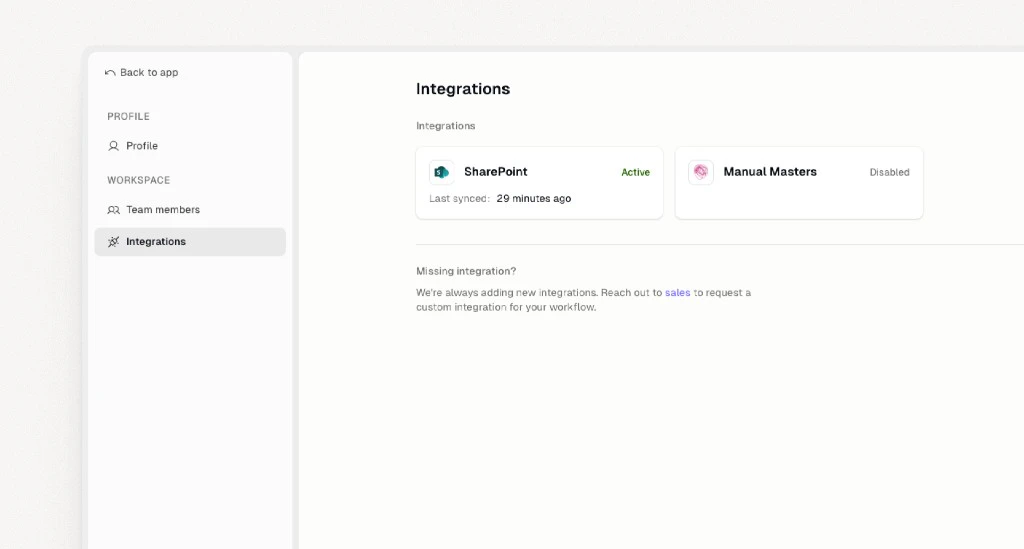
Once the integration is set up, you can manage it from **Settings → Integrations**. Here you see which integrations are active, when they last synced, and whether there are any issues. You can also request new integrations from this page.
#### What is synced
* The files inside the SharePoint folder you point us to (PDFs and Word documents)
* Metadata used for discovery and compliance: title, type, size, creator, modified and created dates, and file path
* File content is processed for search and answer generation
#### Authentication and security
The SharePoint integration uses Microsoft Entra ID for authentication and access control.
* **Seamless SSO**: If your organisation has configured [Single Sign-On (SSO)](/docs/installation/sso), users access SharePoint evidence with the same credentials
* **Enterprise security**: Your existing Microsoft Entra ID policies apply, including multi-factor authentication and conditional access
* **Secure data access**: All SharePoint access is authenticated through Microsoft Entra ID, so only authorised users can import and view evidence
***
#### Adding a new company tenant
This section explains how to add a new company tenant to the existing SharePoint app registration and connect it to Passionfruit.
##### Step 1: Allow the tenant in the app registration
Restrict the multi-tenant app registration to specific Entra tenants by adding the new company.
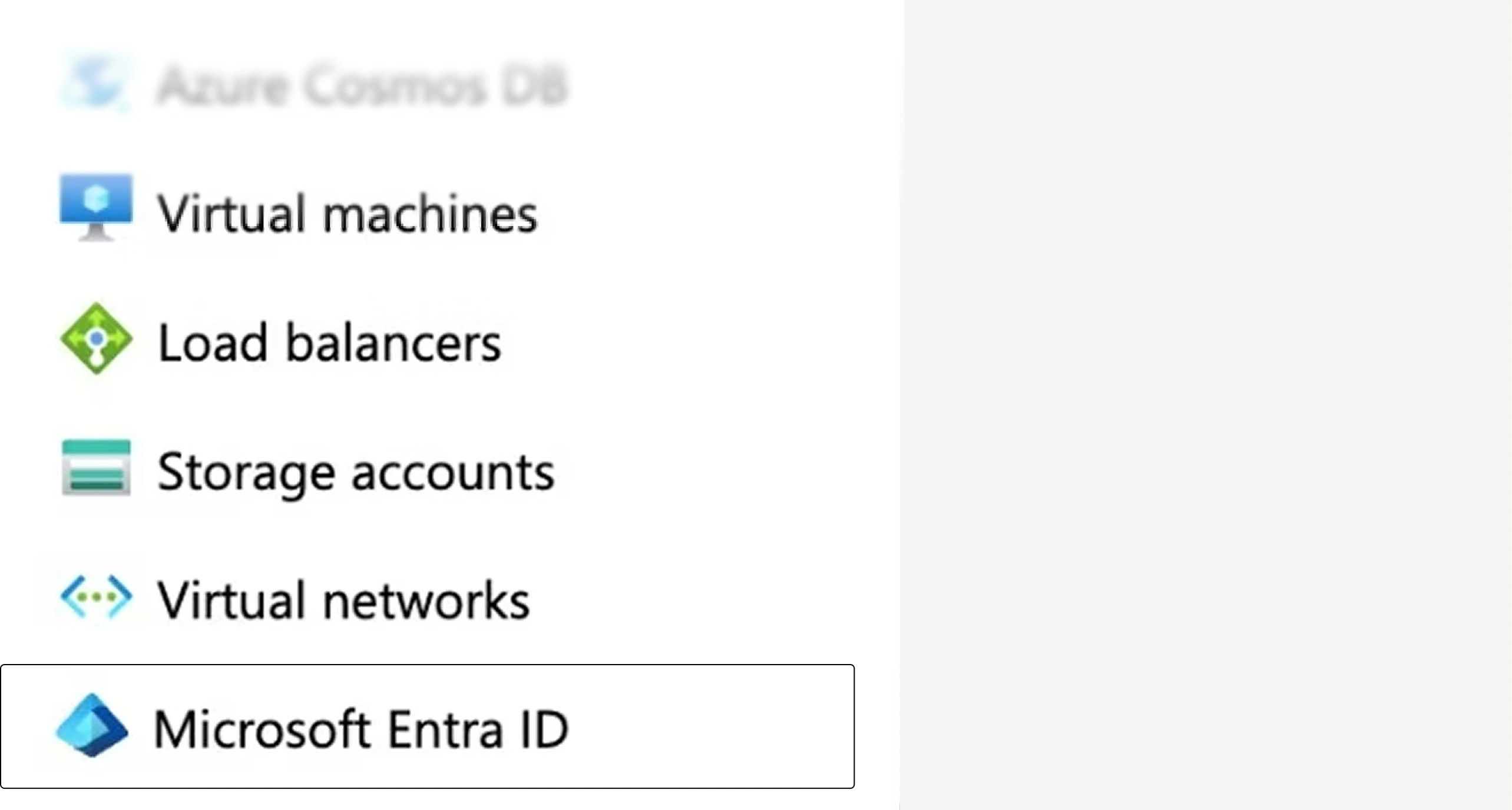
1. Open **Azure Portal** and go to **Microsoft Entra ID**.
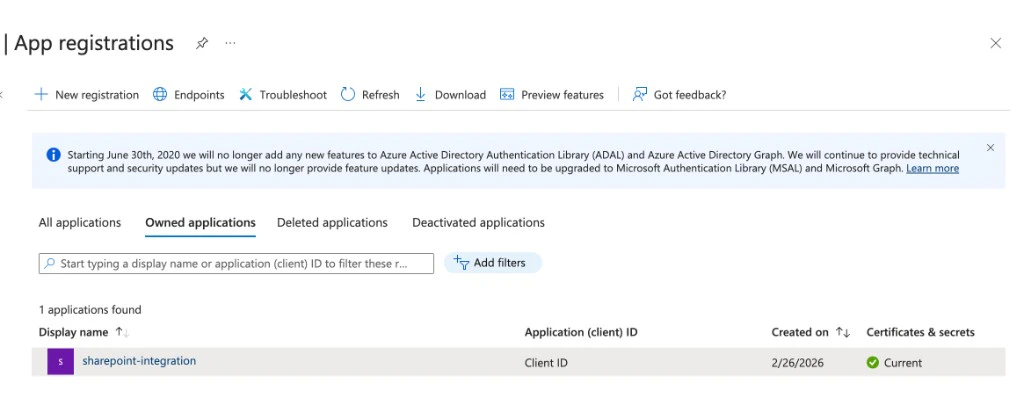
 2. Go to **App registrations** and open the SharePoint integration app.
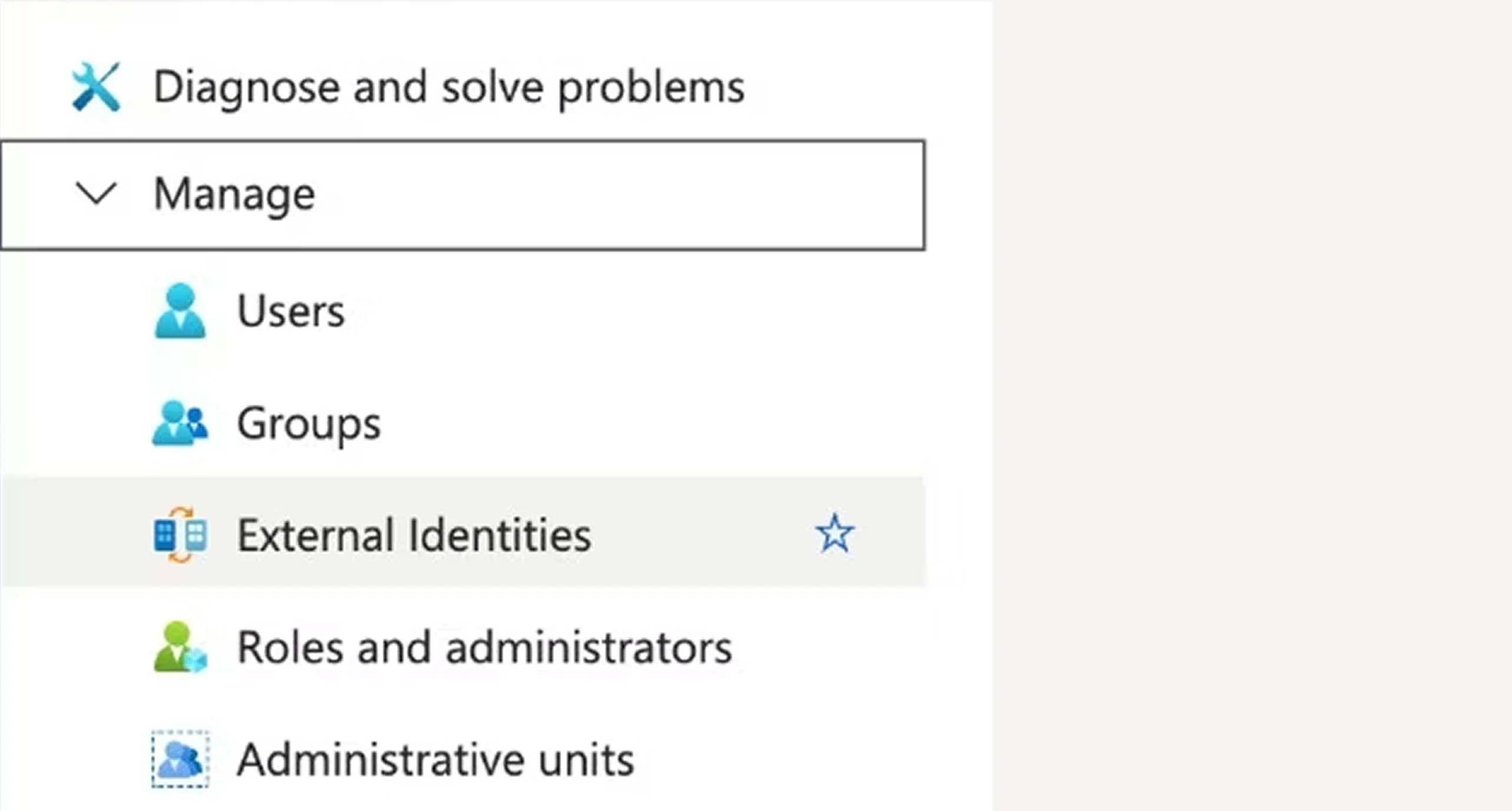
 3. Open **Authentication (Preview)** → **Supported accounts**.
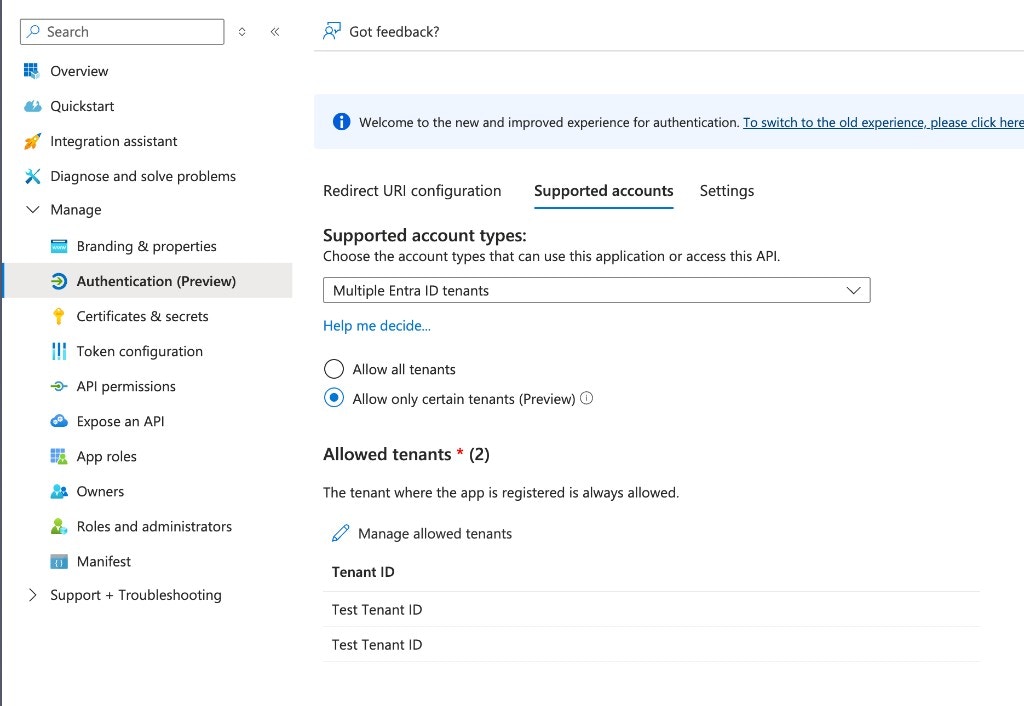 4. Click **Manage allowed tenants**.
5. In the dialog, add the new company tenant by **Tenant ID** or domain, then save.
4. Click **Manage allowed tenants**.
5. In the dialog, add the new company tenant by **Tenant ID** or domain, then save.
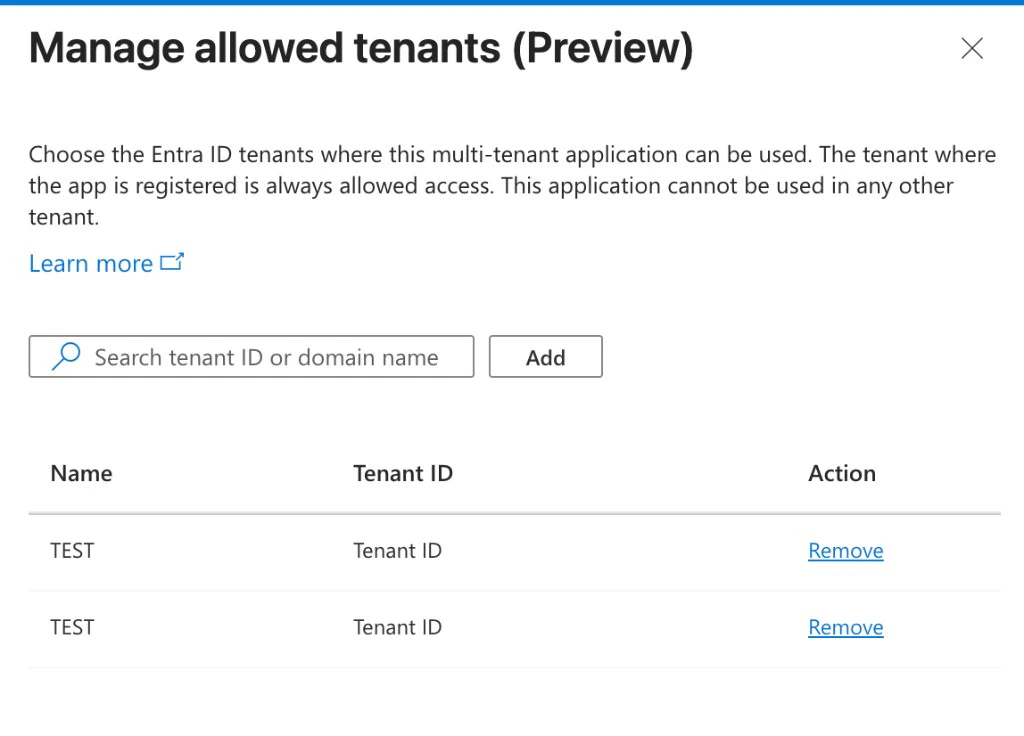 6. Confirm the new tenant appears under **Allowed tenants**.
##### Step 2: Share details with Passionfruit
After your tenant is allowed on the app registration, send the Passionfruit team the information below so we can finish setup on our side. You do not need to run database scripts or call APIs. Those steps are handled internally.
| What we need | Where to find it |
| -------------------------- | ---------------------------------------------------------------------------------------------------------------------------------------- |
| **Tenant ID** | **Azure Portal** → **Microsoft Entra ID** → **Overview** → **Tenant ID** (also called **Directory (tenant) ID**). |
| **SharePoint site URL** | The full URL of the site that contains the library you want to sync (for example `https://yourcompany.sharepoint.com/sites/Compliance`). |
| **Folder or library path** | The path to the folder or library inside that site (for example `Shared Documents/Policies` or the library name your team uses). |
If we already shared an **Application (client) ID** with you for this integration, include it when you write in so we can match your organisation to the correct app registration.
Use one SharePoint connection per organisation in Passionfruit. If you change
sites or need to replace an integration, coordinate with us first so we can
update the configuration cleanly.
##### Step 3: We complete setup and sync
Passionfruit configures the integration, connects to your SharePoint scope, and runs the initial sync. We'll let you know when evidence from SharePoint is available in your Knowledge Base and when ongoing sync is active.
6. Confirm the new tenant appears under **Allowed tenants**.
##### Step 2: Share details with Passionfruit
After your tenant is allowed on the app registration, send the Passionfruit team the information below so we can finish setup on our side. You do not need to run database scripts or call APIs. Those steps are handled internally.
| What we need | Where to find it |
| -------------------------- | ---------------------------------------------------------------------------------------------------------------------------------------- |
| **Tenant ID** | **Azure Portal** → **Microsoft Entra ID** → **Overview** → **Tenant ID** (also called **Directory (tenant) ID**). |
| **SharePoint site URL** | The full URL of the site that contains the library you want to sync (for example `https://yourcompany.sharepoint.com/sites/Compliance`). |
| **Folder or library path** | The path to the folder or library inside that site (for example `Shared Documents/Policies` or the library name your team uses). |
If we already shared an **Application (client) ID** with you for this integration, include it when you write in so we can match your organisation to the correct app registration.
Use one SharePoint connection per organisation in Passionfruit. If you change
sites or need to replace an integration, coordinate with us first so we can
update the configuration cleanly.
##### Step 3: We complete setup and sync
Passionfruit configures the integration, connects to your SharePoint scope, and runs the initial sync. We'll let you know when evidence from SharePoint is available in your Knowledge Base and when ongoing sync is active.