> ## Documentation Index
> Fetch the complete documentation index at: https://docs.passionfruit.earth/llms.txt
> Use this file to discover all available pages before exploring further.
# Upload evidence
> Upload files and links to add new evidence
#### Overview
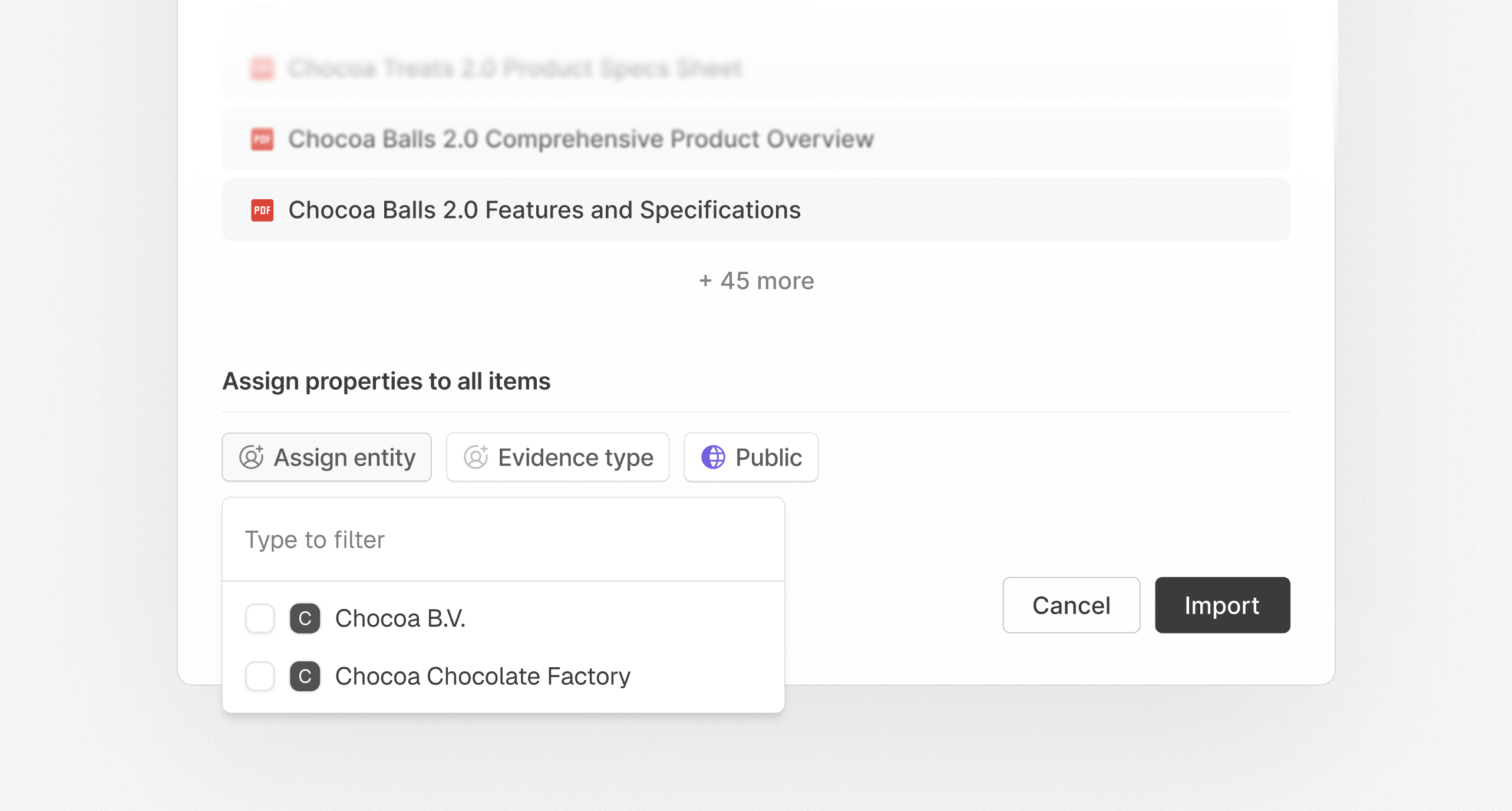
Upload source files and links to keep citations close to your work. During upload, Passionfruit checks for duplicates before adding files and lets you assign key properties like entity and tags. After upload, content is processed and suggested metadata is available for review so evidence is searchable, organised, and ready to cite.
#### Duplicate detection on upload
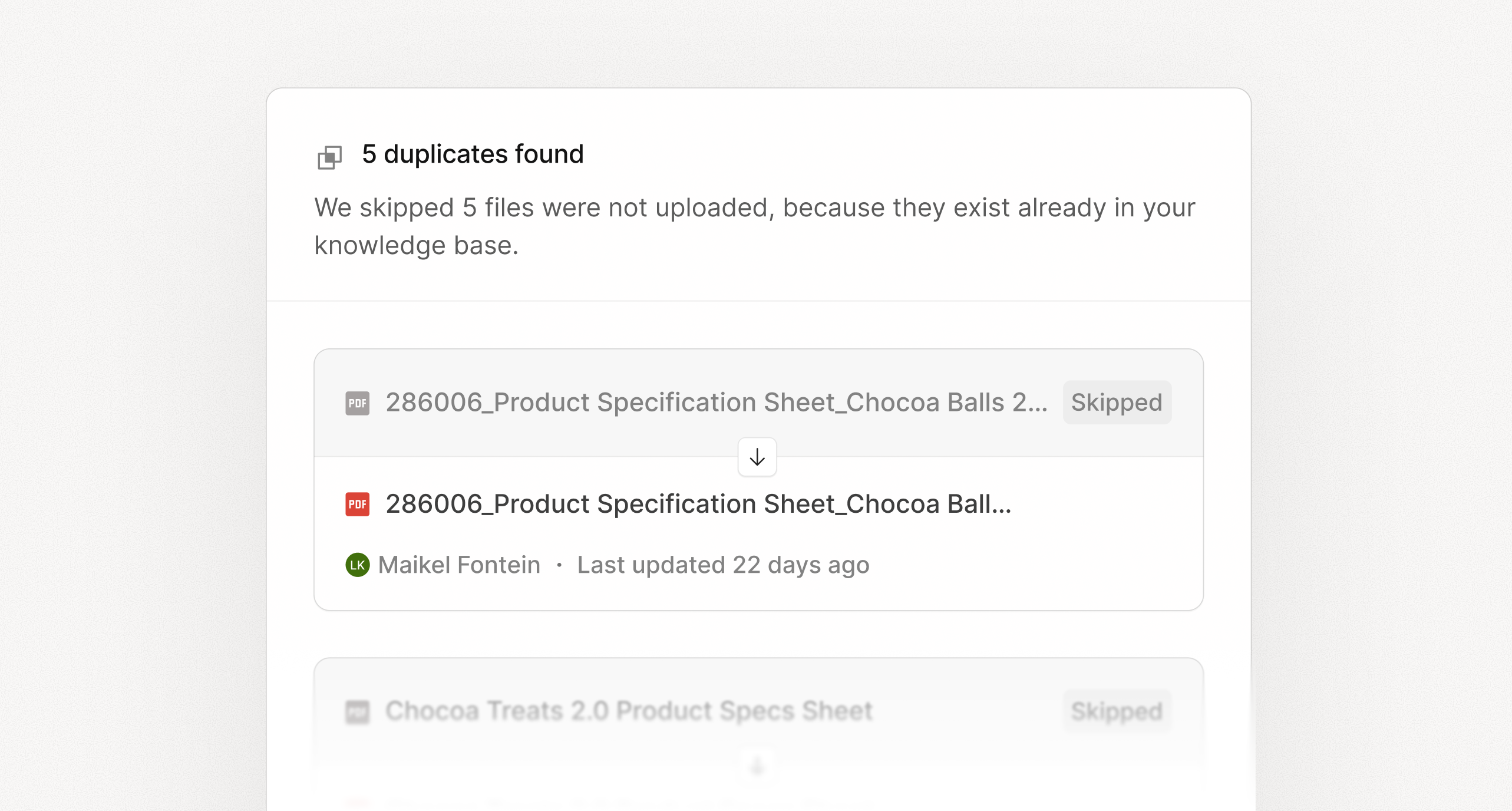
If a file already exists in your knowledge base, Passionfruit flags it during upload so you can avoid adding duplicates.
#### Steps (Desktop and Mobile)
The workflow is the same on Desktop and Mobile; only the layout differs.
1. Open `Evidence` and select `Upload` (click on Desktop, tap on Mobile)
2. Drag and drop files or select files and paste links
3. If a file already exists, Passionfruit flags it before it is added
4. Assign key properties during upload (for example: `Entity` and important `Tags`)
5. Finish upload and review suggested metadata once processing completes