> ## Documentation Index
> Fetch the complete documentation index at: https://docs.passionfruit.earth/llms.txt
> Use this file to discover all available pages before exploring further.
# MS Office Add-ins
> Install and use Passionfruit in Microsoft Excel, Word, PowerPoint, and Outlook
Install Passionfruit in Microsoft Office to draft answers, review citations, and export without leaving Excel, Word, PowerPoint, or Outlook.
Excel Add-in
Transform Excel into a powerful questionnaire management tool.
Word Add-in
Create and edit questionnaire documents with AI assistance.
PowerPoint Add-in
Turn your questionnaire data into compelling presentations.
This page covers the fastest ways to install and where to find the add-in in Office.
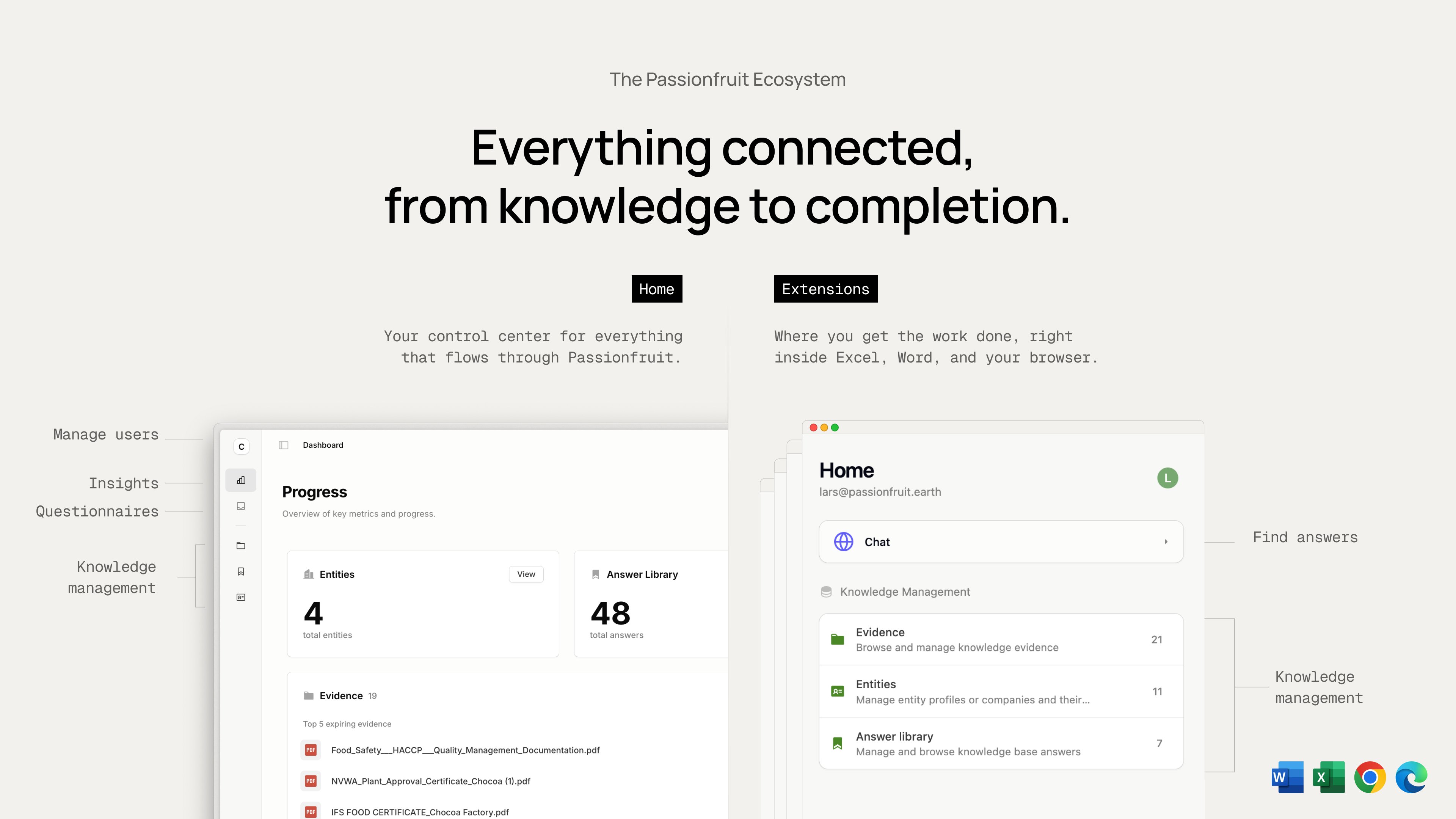
We're focused on helping you fill in questionnaires directly in Excel and Word. Any data needed to complete those questionnaires—answers, evidence, or entity details—can be updated from within the add-ins or via the Home web app. Everything stays in sync.
## Install from Microsoft AppSource
Get Passionfruit directly from Microsoft’s marketplace.
* Open: [Passionfruit on Microsoft AppSource](https://appsource.microsoft.com/nl-nl/product/saas/wa200007971?tab=overview)
* Click `Get it now` and follow the prompts
* Once installed, open your Office app and look for Passionfruit in the ribbon or under `Add-ins`
## Install from within Office
You can also add Passionfruit from the Office ribbon.
1. Open Outlook, Word, Excel, or PowerPoint
2. Go to `Insert` → `Get Add-ins` (or `My Add-ins`)
3. Search for "Passionfruit" and select `Add`
4. The add-in appears in your ribbon and under `My Add-ins`
## For administrators
Deploy Passionfruit to teams or your entire organization.
1. Go to the [Microsoft 365 `Admin Center`](https://admin.microsoft.com)
2. Navigate to `Settings` → `Integrated apps` → `Add apps`
3. Search for "Passionfruit" and select the add-in
4. Choose who gets it (users or groups) and whether it installs automatically
5. Review and approve permissions, then `Deploy`
6. Monitor deployment status and confirm the add-in appears for users
## What you can do now
* Excel: Use `PASSIONFRUIT.ASK` to answer cells with sources. See [Excel add-in](/docs/addins/excel).
* Word: Draft structured responses with citations, then insert. See [Word add-in](/docs/addins/word).
* PowerPoint: Turn answers into slides to share outcomes.
* Outlook: Integration is in progress and coming soon.
## Support
Need help? We’re here for you.
* Contact your IT admin for store access or permission issues
* Email us at [hello@passionfruit.earth](mailto:hello@passionfruit.earth)
Steps may vary based on your Microsoft 365 version and organizational policies.